 QR Code Free Generator
Before printing a QR code, verify its destination while signed out, preserve the clear border, and test the finished artwork at its intended size. Scan a physical proof with representative phones, complete the intended action, and record the approved file. A successful screen scan alone does not verify a printed batch.
What is this checklist for?
This checklist helps you approve a specific QR design before ordering business cards, labels, menu signs, or other printed materials. It separates three questions: whether the pattern decodes, whether the destination works for the public, and whether the finished print remains readable in its actual setting.
Download the one-page print checklist. The file is a scalable SVG sheet: save it, open it in a compatible browser or design application, and print one copy for each design you approve. It contains empty checkboxes and a sign-off line. It does not submit information or certify a printer, phone, or material.
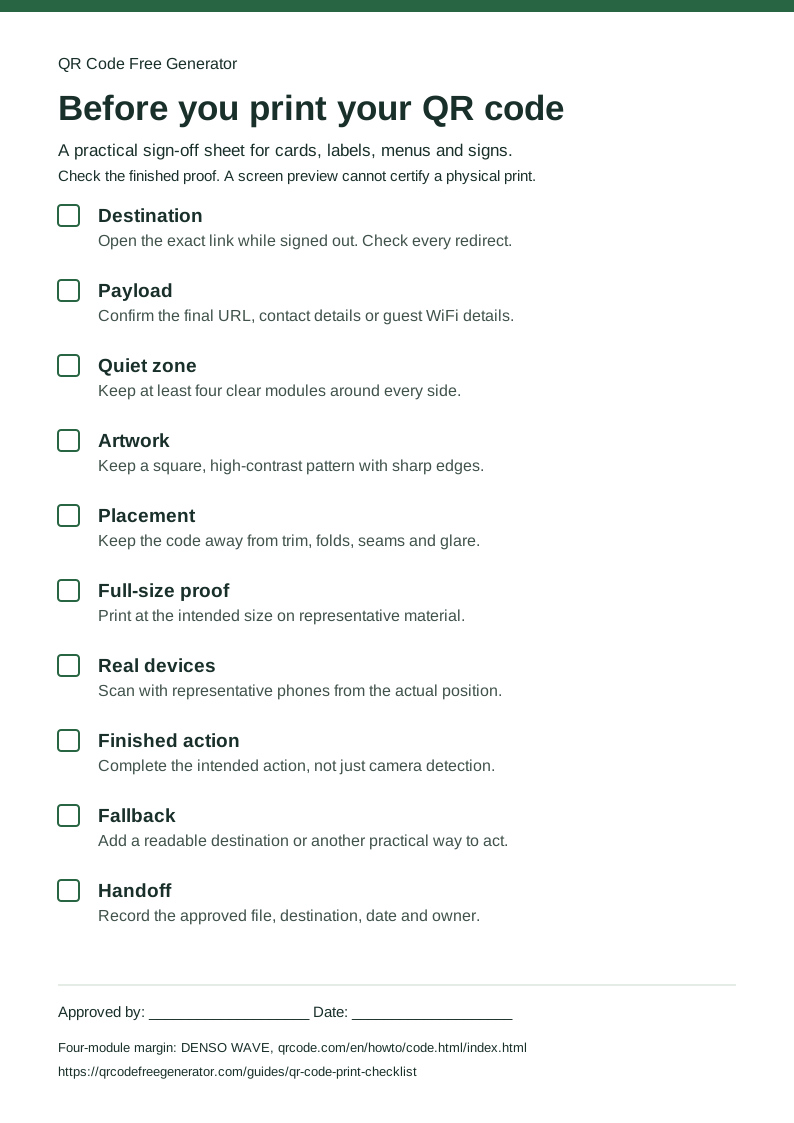
Use the sheet alongside the actual artwork. A QR image copied from an earlier draft can point somewhere different even when its styling looks identical. For a new design, start with the free QR generator, or use the bulk CSV generator for a batch of distinct destinations.
Which destination checks come first?
Open the exact encoded address as a visitor would, without relying on your account permissions. For a document, a successful view in the owner’s browser does not prove that another person can read it. For a menu, check the current published page rather than its editing address.
- Copy the final destination into a signed-out browser session.
- Follow the same redirects a visitor would encounter.
- Confirm the expected business, document, language, or action appears.
- Check the mobile experience, including any required sign-in.
- Record the destination before exporting the approved QR file.
For Google reviews, use the business’s own review link and confirm the correct listing opens. Google’s guidance on requesting reviews explains how to share a review link or QR code. Our review-link guide walks through the generator workflow. Keep requests neutral; a QR sign should not promise a reward for a favorable review.
How do you protect the pattern and its border?
Keep the pattern square and preserve an unobstructed quiet zone around all four sides. DENSO WAVE’s code-area guidance specifies a border of at least four modules for standard QR codes. A module is one cell in the pattern, so four modules is not the same as four pixels.
Do not squeeze the square to fit a narrow label or stretch it to fill a wide card. Keep captions, backgrounds, cut lines, and decorative frames outside the clear border. If the design application crops an image to its visible dark marks, restore the missing margin before exporting the print file.
A simple dark pattern on a plain light background is a sensible proofing baseline. Decorative dots and logos need additional testing because they alter what a camera sees. If a branded version fails, compare it with a plain version using the same payload and physical size. That makes the source of the failure easier to isolate.
Which file should you give the printer?
Give the printer a clearly named final export, its intended physical dimensions, and any instructions needed to preserve its proportions and border. Keep the original alongside the print artwork so you can distinguish a generator error from a change introduced during placement or conversion.
SVG is useful in workflows that retain vector edges. PNG can also work when its source resolution is appropriate and the design does not blur it through repeated resizing. A large pixel count cannot compensate for a physically tiny pattern that the intended camera cannot resolve. The print-size guide explains module density and practical proofing.
For bulk jobs, maintain a table linking each file to its intended destination and placement. Open representative files from the actual delivered ZIP rather than inspecting only the generator preview. Check all critical destinations; a spot check of image quality cannot establish that every row contains the correct content.
What does a useful physical proof include?
A useful proof reproduces the intended size, stock, finish, and placement as closely as practical. Printing a large sample on plain office paper is helpful for an early check, but it does not establish that a smaller glossy label on a curved container will work.
| Check | What to do | What passing it establishes |
|---|---|---|
| Actual scale | Print the final artwork at its planned dimensions | You have tested that physical size |
| Final surface | Use representative stock and finishing | You have checked that sample’s reproduction |
| Viewing position | Scan from the position available to a visitor | That tested position is workable |
| Destination action | Open the page or complete the intended operation | Detection led to the expected result |
Test representative phones when available and keep a note of what you used. This guide does not claim a measured success rate or universal device compatibility. The generator’s local scan check helps identify a decoding problem in its rendered image; it cannot reproduce glare, print defects, a visitor’s camera, or a destination service’s behavior.
What changes for menus, WiFi signs and review cards?
The final action depends on the payload, so approve the visitor’s complete task. A camera recognizing a square is only one step. A working workflow also needs readable instructions, an appropriate destination, and conditions that let the person finish.
For a restaurant menu, scan the folded sign inside its actual holder and read the menu on a phone. Check reflections and whether the table position allows a comfortable scan. For guest WiFi, confirm the code uses the intended guest network, then test joining it; retain a suitable manual connection option for unsupported devices. Treat the printed credentials as shared information.
For a Google review card, verify the business listing and the review flow. A person may need to sign into Google. Keep the sign’s wording honest about that destination, and avoid placing the QR where a customer could mistake it for payment or WiFi access.
What should the final handoff record contain?
Record the approved filename, destination or payload reference, finished dimensions, proof date, responsible person, and any conditions that mattered in testing. Keep sensitive credentials out of a broadly shared job sheet. A private reference to the approved WiFi setup is often more appropriate than copying its password into an email thread.
Add a readable fallback where practical, such as a short public address, phone number, or clear staff instruction. Maintain the destination after the print run. Static codes do not provide an editing service: see static versus dynamic QR codes before promising that a printed pattern can be changed.
If a released code stops working, compare the saved file, a fresh physical sample, and the live destination separately. Our troubleshooting guide follows that process. Reuse this checklist whenever the destination, artwork, material, or placement changes; an earlier approval covers the version and conditions actually tested.